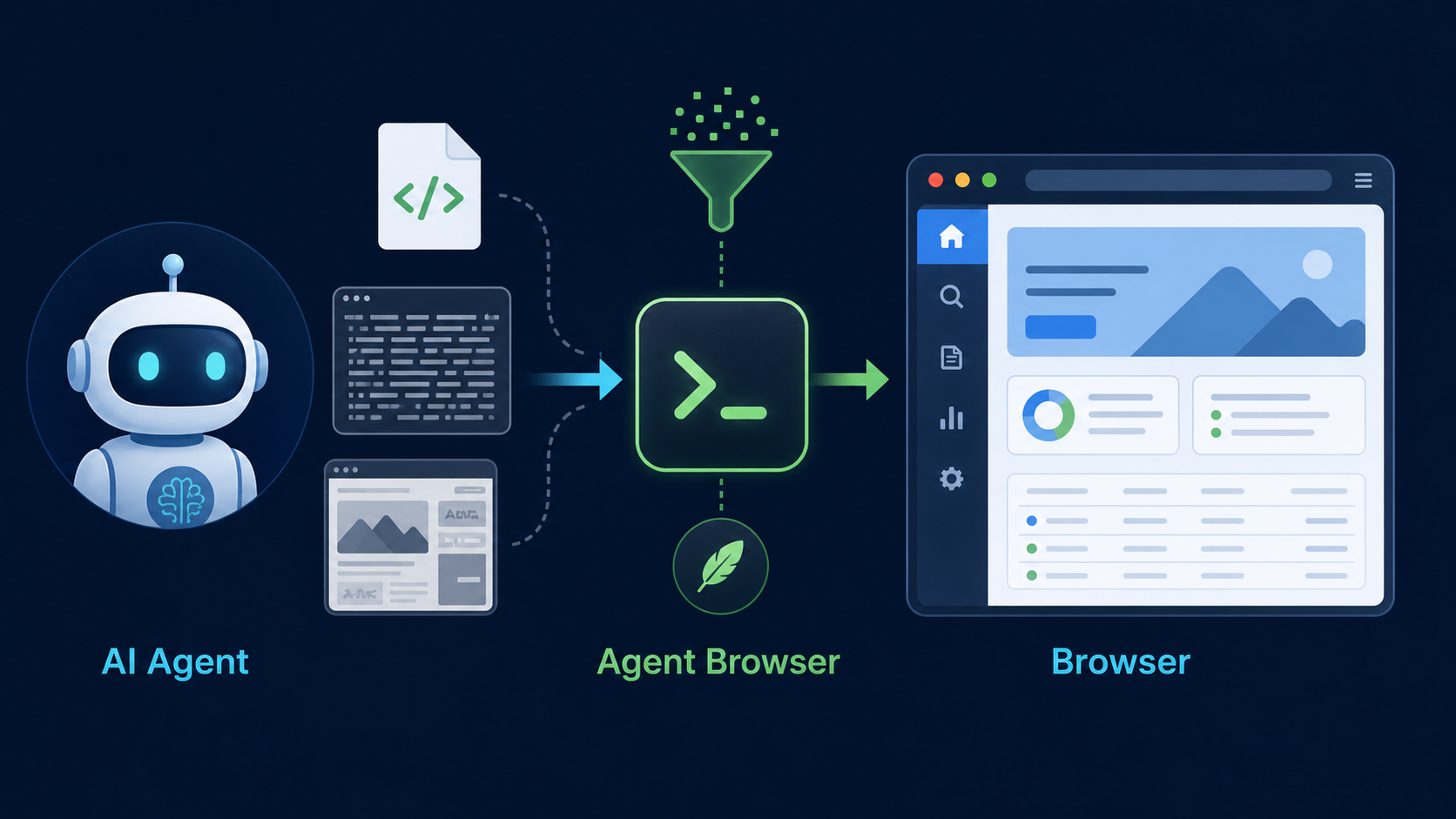
When developers think about browser automation, they usually think about Playwright, Selenium, DOM selectors, or screenshots. That framing works when the operator is a developer writing a script. But when the operator is an AI agent, the problem changes.
An agent does not only need a way to “open the web.” It needs an interface that is compact enough to understand, stable enough to act on, and persistent enough to avoid losing login state every time it runs.
That is why Agent Browser is interesting.
It is not just a CLI for clicking buttons and filling forms. The more useful idea is this: Agent Browser turns the browser into an I/O layer designed for AI agents. Instead of forcing the model to read long HTML, guess CSS selectors, or spend tokens on screenshots, it gives the agent a short interactive map of the page.
snapshotis not a screenshot; it is a text accessibility tree with refs attached to elements.- Agents act through refs like
@e3and@e4, instead of guessing selectors. - After every click, navigation, or re-render, the agent should take a new snapshot because refs only live inside the current snapshot.
- Sessions, profiles, and CDP mode are what make Agent Browser useful for real automation, not just demos.
- Dashboard, diffing, console, network, and profiler turn it into a runtime for observing and debugging browser flows.
1. The problem is not whether AI can open a browser
AI agents already have many ways to use a browser. They can call Playwright. They can read HTML. They can look at screenshots. They can run JavaScript inside a page.
But each approach has a cost.
HTML and DOM are too verbose. A real web page can contain a huge number of nodes, class names, scripts, menus, footers, banners, and tracking elements. If all of that goes into context, the agent burns tokens and can still pick the wrong thing to click.
Screenshots are more visual, but they are not always what the agent needs. Images help with layout, color, and visual state. But an image does not directly tell the agent which element is a button, which input has which label, or where to click in a stable way.
Selectors are powerful for developers, but unnatural for agents. Asking a model to invent .btn-primary:nth-child(3) is fragile. A small UI change can break the selector. A page with several similar buttons can make the agent click the wrong one.
Then there is the practical issue: login and session state.
Toy automation can stop at public pages. Real automation often needs dashboards, admin panels, staging apps, analytics tools, social apps, or internal tools. If every run loses cookies, localStorage, profile state, or 2FA, the agent gets stuck at the door before doing useful work.
So the better question is:
How can the browser become an environment that an agent can understand, act inside, observe, and return to later?
Agent Browser answers this with snapshots, refs, sessions, profiles, CDP mode, and a command set designed around the agent workflow.
2. A snapshot is an interaction map, not a screenshot
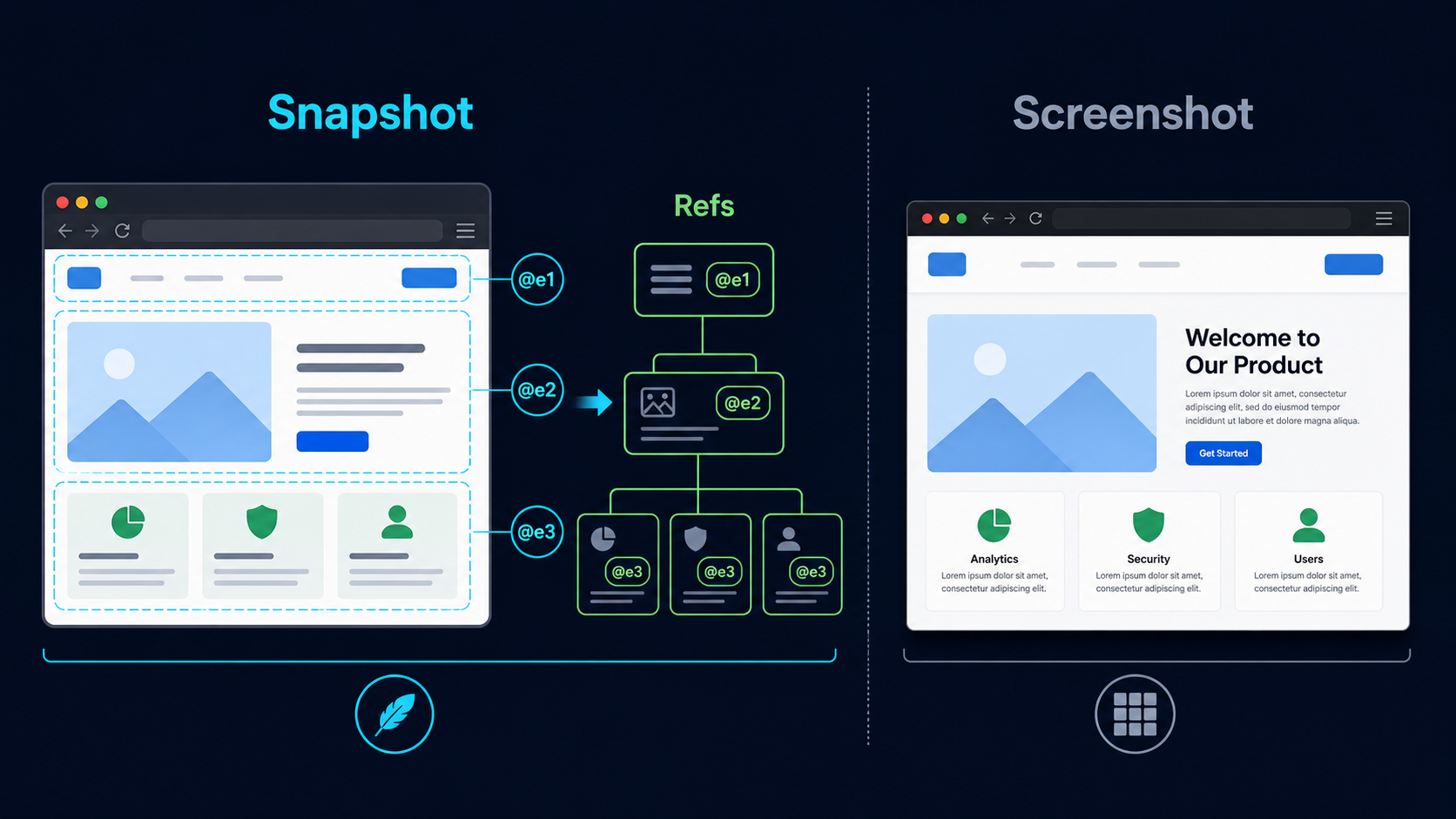
The easiest word to misunderstand is snapshot.
In Agent Browser, a snapshot is not a PNG or JPG. It is a text accessibility tree, usually much shorter than the DOM, with refs attached to interactive elements.
A login page might look like this to the agent:
Page: Example - Log in
URL: https://example.com/login

@e1 [heading] "Log in"
@e2 [form]
  @e3 [input type="email"] placeholder="Email"
  @e4 [input type="password"] placeholder="Password"
  @e5 [button type="submit"] "Continue"
From there, the workflow becomes natural:
agent-browser fill @e3 "user@example.com"
agent-browser fill @e4 "password"
agent-browser click @e5
The agent does not need to guess a selector. It reads the page as a map of possible actions: this is the email input, this is the password input, this is the Continue button.
But there is one important rule: refs only live inside the current snapshot.
After a click, form submit, navigation, modal open, or page re-render, refs like @e3 should not be reused from memory. The agent should take a new snapshot and get fresh refs.
agent-browser snapshot -i
agent-browser click @e5
agent-browser wait --load networkidle
agent-browser snapshot -i
The mental model is simple: use snapshots to act; use screenshots to inspect visuals.
3. The core loop: open, snapshot, act, wait, snapshot again
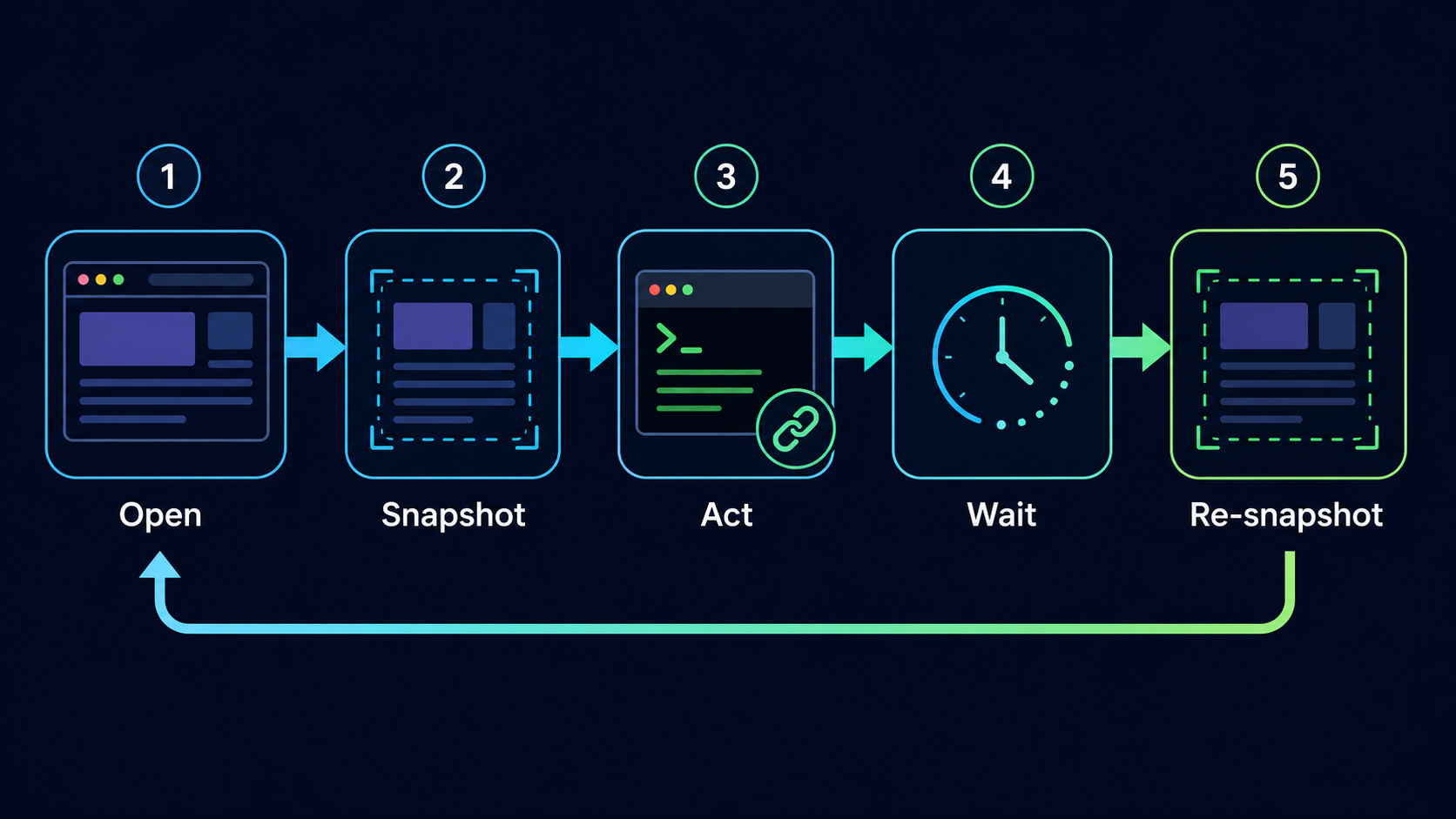
A good browser workflow for agents is not complicated at the conceptual level. It is a loop:
agent-browser open https://example.com
agent-browser snapshot -i
agent-browser click @e2
agent-browser wait --load networkidle
agent-browser snapshot -i
The steps are:
- Open the right URL.
- Snapshot the page to understand it and collect refs.
- Act with
click,fill,press,select,check, orupload. - Wait if the action changes the page or state.
- Snapshot again before the next interaction.
The value of this loop is that it forces the agent to observe before acting. That habit matters in browser automation because web apps are not static. One click can open a modal. A form submit can redirect. A button can become disabled. A SPA can re-render and remove the old element.
If the agent keeps acting from the old plan without taking a new snapshot, it is operating on memory instead of the current page state.
4. Sessions and profiles make automation usable in real work
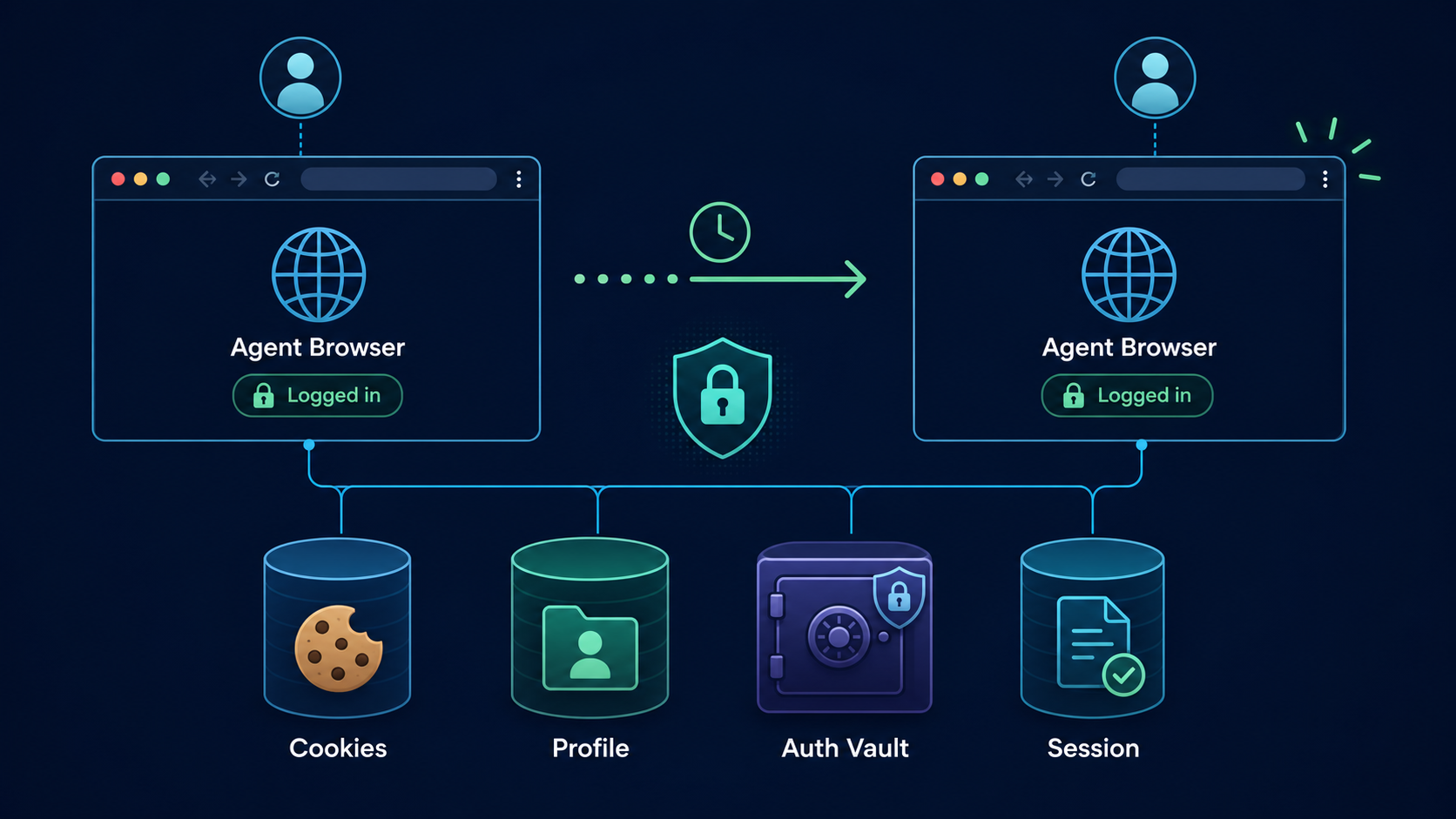
Many browser automation demos stop at public pages. Real work usually needs logged-in state.
Agent Browser supports sessions and profiles so it can keep cookies, localStorage, navigation history, and auth state. For example:
agent-browser --session-name internal-dashboard open https://dashboard.example.comAfter the first login, the agent can reuse the same session and return to that environment later. With profiles, the agent can use the right Chrome, Brave, or Chromium state instead of always starting from a clean browser.
This matters because login is not a small detail. For many apps, login is the most fragile part of automation:
- 2FA changes over time.
- Cookies expire.
- OAuth redirects across several domains.
- Bot detection is sensitive to a brand-new browser.
- Some apps work correctly only with a specific profile state or extension setup.
If session state is not persistent, the agent spends most of its time trying to get back to the starting point. If the session is durable, the agent can work more like a teammate returning to the same workspace.
5. CDP mode connects to a real Chrome when context matters
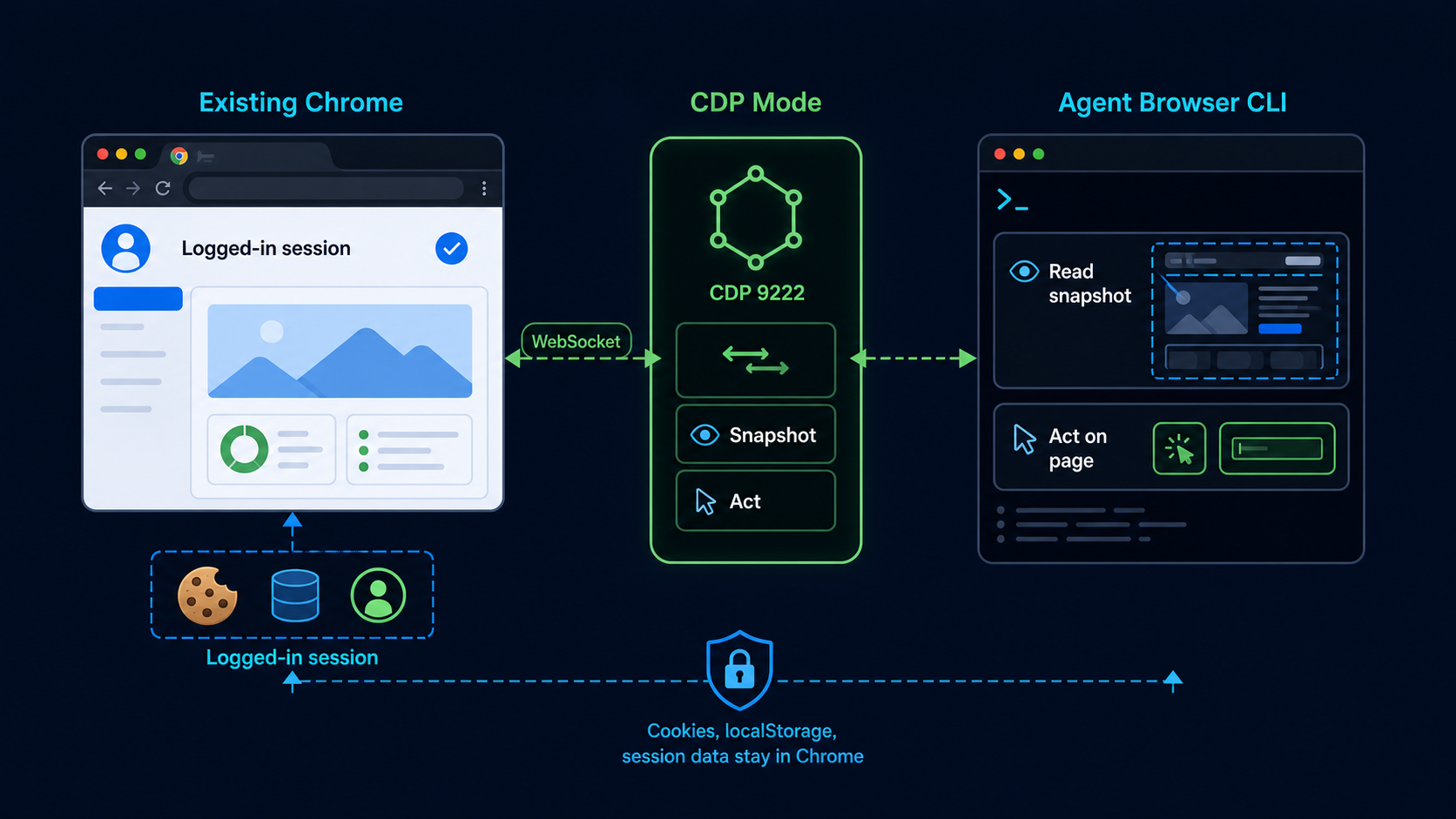
Another useful feature is CDP mode. It lets Agent Browser connect to a running browser through the Chrome DevTools Protocol.
This is useful when a developer already has Chrome in the right state: logged in, running a local app, or sitting on the exact screen where a bug appears. Instead of asking the agent to rebuild the flow from scratch, you can expose that browser through remote debugging and let the agent read the current context.
On macOS, that can look like this:
"/Applications/Google Chrome.app/Contents/MacOS/Google Chrome" --remote-debugging-port=9222
agent-browser connect 9222
agent-browser snapshot -i
The important caveat: Agent Browser does not automatically take over your everyday Chrome window. It can only attach to a browser instance with a CDP endpoint. If Chrome was not launched with --remote-debugging-port, the agent cannot magically jump into it.
CDP mode is best used when you intentionally open a separate Chrome instance for automation, with the right profile or session state, and then let Agent Browser connect to it.
A remote debugging port lets local processes control the browser. Only enable it on a trusted machine, and close that browser instance when you are done.
6. Observability keeps the agent from becoming a black box
One frustrating part of automation is the black-box feeling. The agent says it clicked something, but you do not know where it is, what modal it hit, or whether it is stuck behind a cookie banner.
Agent Browser has Dashboard and Streaming to make this visible.
agent-browser dashboard start
agent-browser open https://example.com
The dashboard shows the live viewport, activity feed, and session status. Streaming enables live preview or pair browsing. For QA, bug hunting, or automation on a complex app, this is not a side feature. It is how the human checks that the agent is still on the right path.
Diffing also helps confirm whether an action actually changed the page:
agent-browser snapshot -i
agent-browser click @e4
agent-browser diff snapshot
Console, network, and profiler move the workflow from “try clicking and see what happens” toward real debugging:
agent-browser console
agent-browser errors
agent-browser network requests
agent-browser profiler start
agent-browser profiler stop trace.json
For frontend work, the agent does not only need to click the right element. It also needs to know whether the click produced a console error, which API failed, whether the UI changed state, and whether the page is slow because of JavaScript or layout work.
7. When Agent Browser is worth using
Agent Browser is most useful when the task has one or more of these signals:
- The agent needs to perform multiple steps inside a web app.
- The page has forms, modals, dashboards, tables, menus, or dynamic state.
- You need login or session state across runs.
- You want the agent to use snapshot refs instead of inventing selectors.
- You want to watch what the agent is doing live.
- You need console, network, diff, or performance debugging in the same workflow.
- You want to connect to a real Chrome instance through CDP to use the current context.
If you only need to scrape a simple static page, Agent Browser may be unnecessary. But when the browser becomes a long-running work environment for an agent, it starts to matter.
8. Common mistakes
The first mistake is treating a snapshot like a screenshot. A snapshot gives the agent interaction structure. A screenshot gives visual evidence. They complement each other, but they are not the same tool.
The second mistake is keeping refs for too long. @e5 is not a permanent ID for a button. It is a ref inside the current snapshot. If the page changes, take a new snapshot.
The third mistake is skipping waits. If the agent clicks and immediately snapshots again, it may read the page in a half-updated state. Form submits, navigations, SPA updates, and API calls need the right wait condition.
The fourth mistake is treating session persistence as a nice extra. In real automation, persistent sessions often decide whether the workflow can be used every day.
The last mistake is enabling CDP remote debugging casually. CDP is powerful, but it also grants browser control. Use it only in a trusted environment.
9. Takeaway
Agent Browser is not interesting because it “can control a browser.” Many tools can do that.
What makes it interesting is that it treats the browser as an interface for AI agents: read with snapshots, act through refs, keep state through sessions and profiles, attach to real Chrome through CDP, and observe or debug with dashboard, diff, console, network, and profiler.
If Playwright is a powerful API for developers writing automation, Agent Browser is an operating layer that helps agents understand and manipulate the web with less guesswork.
For AI agents, the big difference is not whether they can click. The difference is whether they know what they are clicking, how the page changed afterward, and whether they can return to the same state next time.